> ## Documentation Index
> Fetch the complete documentation index at: https://developer.kyckr.com/llms.txt
> Use this file to discover all available pages before exploring further.
# Portal User Admin
> Managing users and permissions in the Kyckr Portal
All user management happens in the **Admin** area, accessible from the top navigation bar of the Portal. From there, you can view every user linked to your organisation and manage their access. Only account administrators can manage users.
 ## Creating a user
Any administrator can add users to your organisation's account. New users receive a welcome email with a password reset link, giving them immediate access to the Portal.
Click **Admin** in the top navigation bar.
Click **+ Add User**, in the top right of the user management table.
Provide:
* First name
* Surname
* Email address
* Role: **User** or **Admin**
## Creating a user
Any administrator can add users to your organisation's account. New users receive a welcome email with a password reset link, giving them immediate access to the Portal.
Click **Admin** in the top navigation bar.
Click **+ Add User**, in the top right of the user management table.
Provide:
* First name
* Surname
* Email address
* Role: **User** or **Admin**
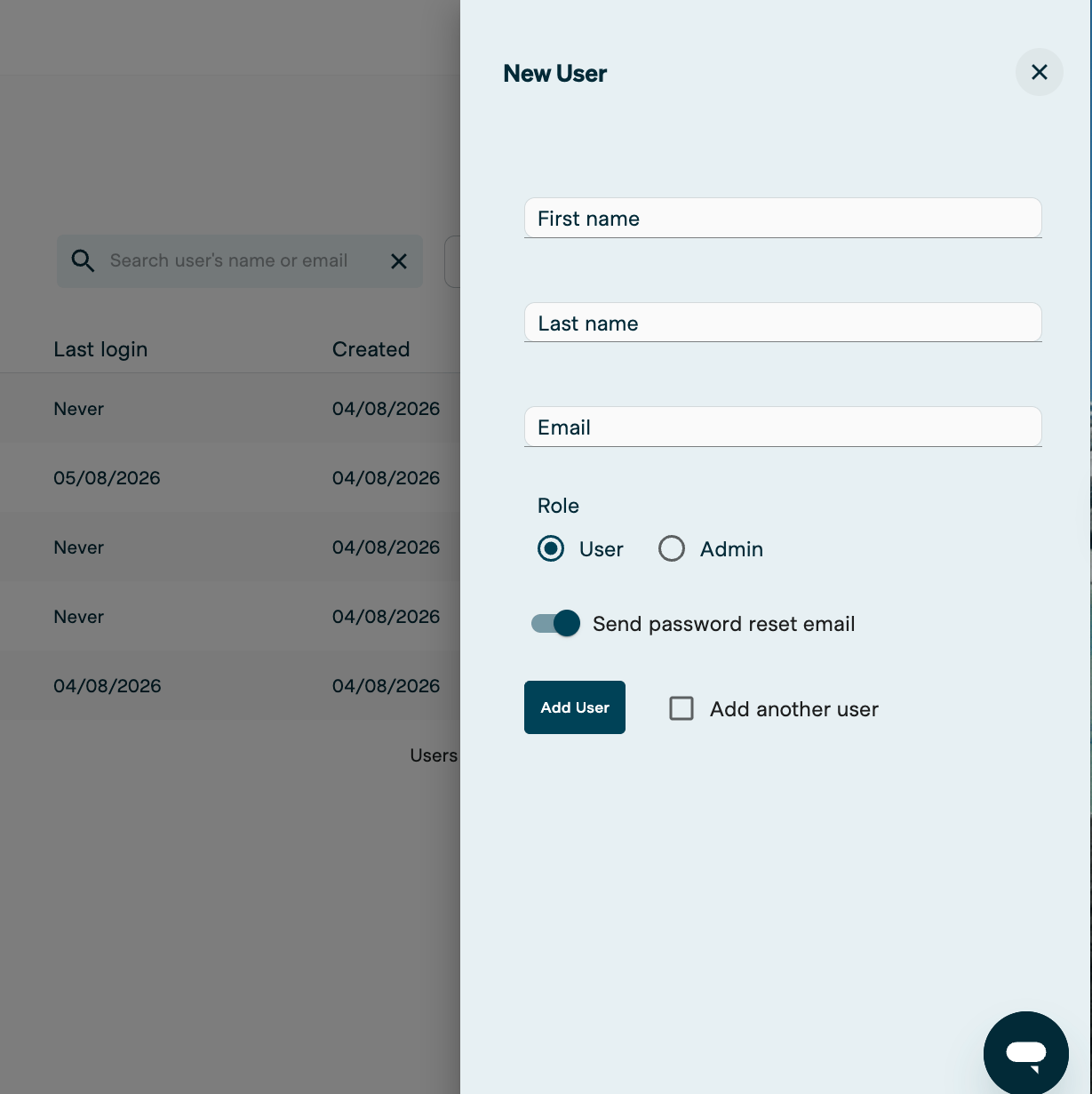 Tick **Add another user** to keep the form open and add several users in one session.
Click **Add User**.
The new user receives a welcome email with a password reset link. They need this to log in for the first time.
***
## Editing a user
Click **Admin** in the top navigation bar.
Search by name or email, then click the three dots (**⋮**) next to the user, and select **Edit User**.
Tick **Add another user** to keep the form open and add several users in one session.
Click **Add User**.
The new user receives a welcome email with a password reset link. They need this to log in for the first time.
***
## Editing a user
Click **Admin** in the top navigation bar.
Search by name or email, then click the three dots (**⋮**) next to the user, and select **Edit User**.
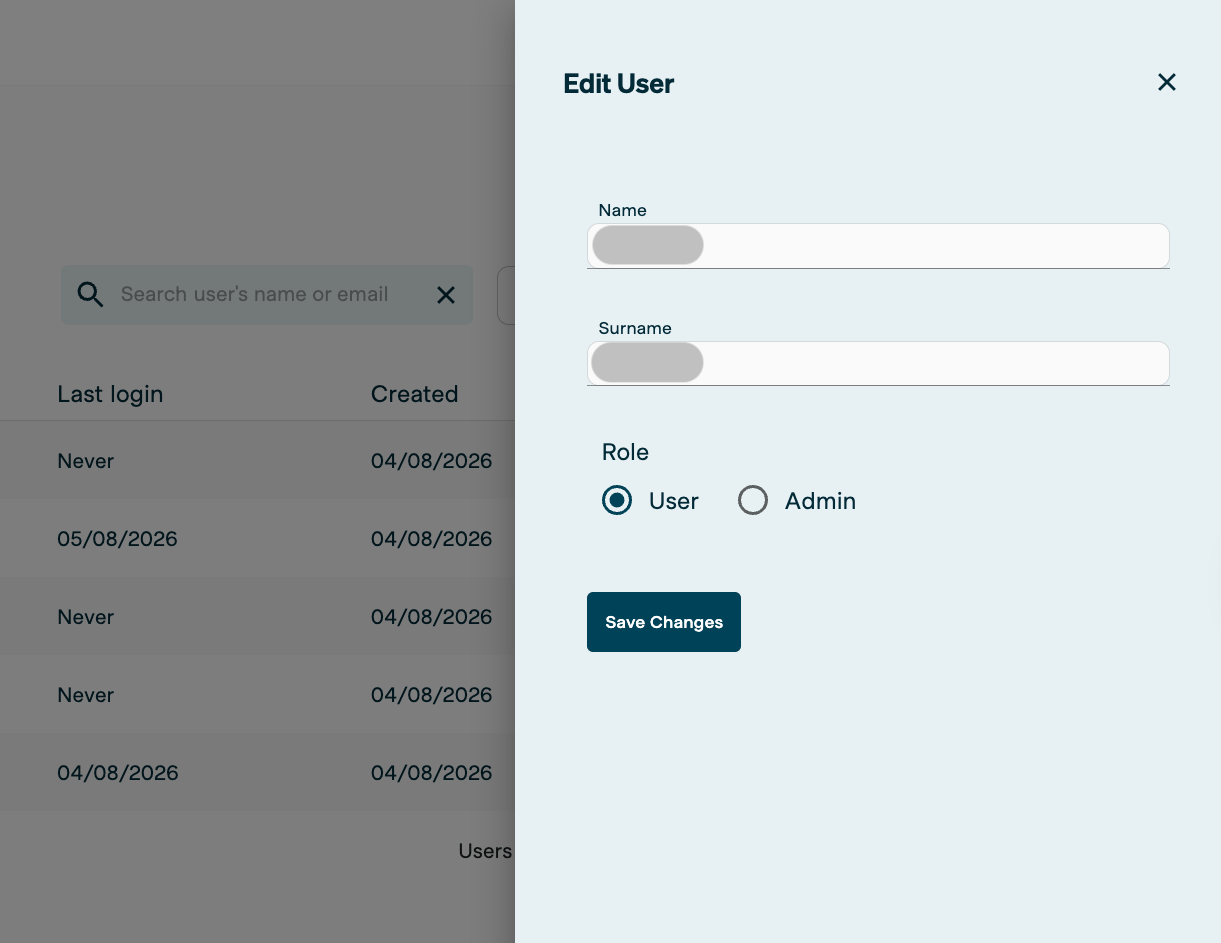 Edit any of the following:
* First name
* Surname
* Role: **User** or **Admin**
Click **Save Changes**.
***
## Resetting a user's password
If a user is having login issues, or isn't receiving their password reset email, an administrator can trigger a reset from the admin area.
Click **Admin** in the top navigation bar.
Search by name or email.
Click the three dots (**⋮**) next to the user, then select **Password Reset**.
The user receives an email to reset their password. If it doesn't arrive, ask them to check their junk folder first. If it still doesn't appear, contact [**support@kyckr.com**](mailto:support@kyckr.com).
***
## Deleting a user
Click **Admin** in the top navigation bar.
Search by name or email, then click the three dots (**⋮**) next to the user you want to remove.
Select **Delete User**.
Click **Save Changes** to confirm.
Deleted users aren't removed permanently. See [Reactivating a deleted user](#reactivating-a-deleted-user) below.
***
## Reactivating a deleted user
Click **Admin** in the top navigation bar.
Click the **Active** drop-down and select **Inactive**.
Edit any of the following:
* First name
* Surname
* Role: **User** or **Admin**
Click **Save Changes**.
***
## Resetting a user's password
If a user is having login issues, or isn't receiving their password reset email, an administrator can trigger a reset from the admin area.
Click **Admin** in the top navigation bar.
Search by name or email.
Click the three dots (**⋮**) next to the user, then select **Password Reset**.
The user receives an email to reset their password. If it doesn't arrive, ask them to check their junk folder first. If it still doesn't appear, contact [**support@kyckr.com**](mailto:support@kyckr.com).
***
## Deleting a user
Click **Admin** in the top navigation bar.
Search by name or email, then click the three dots (**⋮**) next to the user you want to remove.
Select **Delete User**.
Click **Save Changes** to confirm.
Deleted users aren't removed permanently. See [Reactivating a deleted user](#reactivating-a-deleted-user) below.
***
## Reactivating a deleted user
Click **Admin** in the top navigation bar.
Click the **Active** drop-down and select **Inactive**.
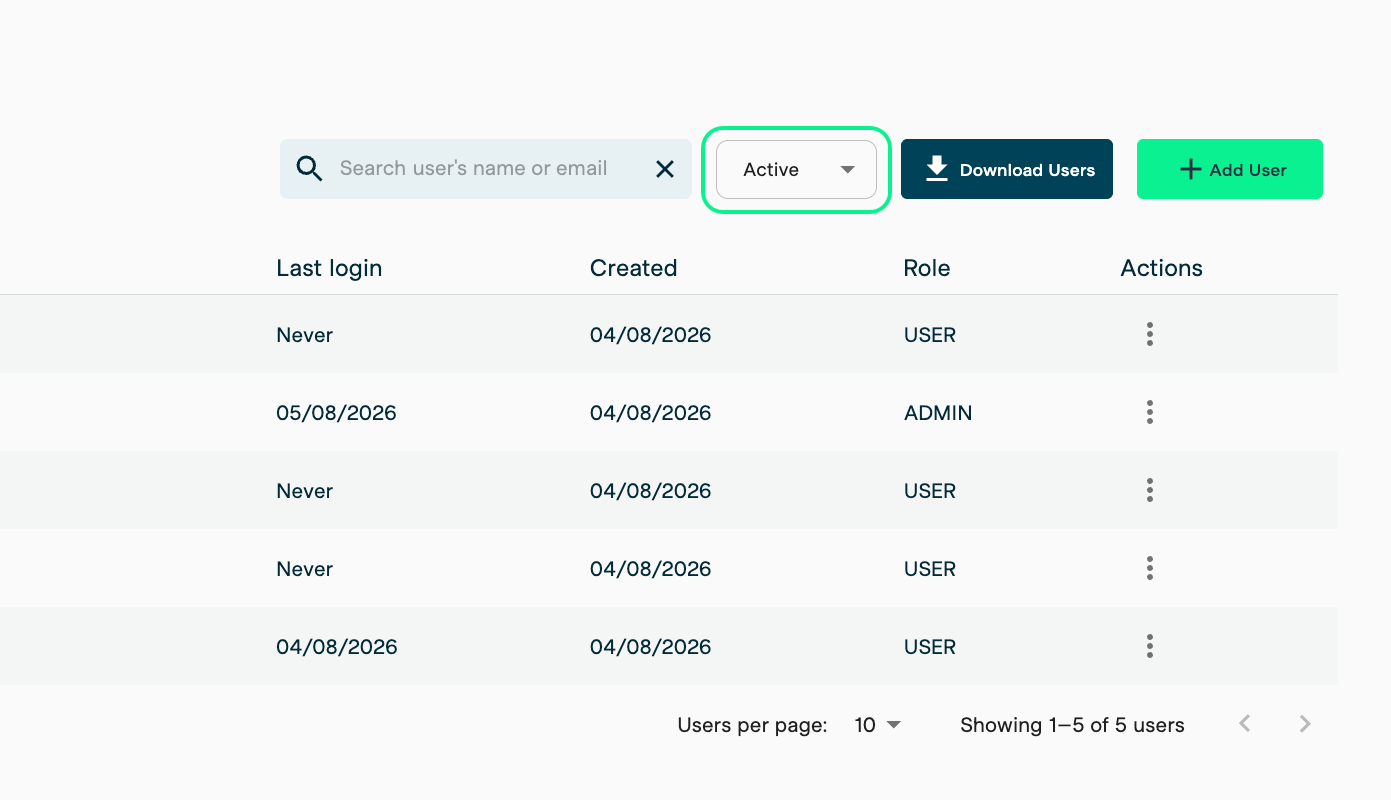 Find the user, click the three dots (**⋮**), then select **Activate User**. Confirm the activation.
Click the **Inactive** drop-down and select **Active** to confirm the user now appears in the active list.
Reactivated users receive a new welcome email, but **not** a password reset email. Ask the user to reset their password at [portal.kyckr.com](https://portal.kyckr.com), or trigger a reset yourself — see [Resetting a user's password](#resetting-a-users-password) above.
Find the user, click the three dots (**⋮**), then select **Activate User**. Confirm the activation.
Click the **Inactive** drop-down and select **Active** to confirm the user now appears in the active list.
Reactivated users receive a new welcome email, but **not** a password reset email. Ask the user to reset their password at [portal.kyckr.com](https://portal.kyckr.com), or trigger a reset yourself — see [Resetting a user's password](#resetting-a-users-password) above.