> ## Documentation Index
> Fetch the complete documentation index at: https://developer.kyckr.com/llms.txt
> Use this file to discover all available pages before exploring further.
# Using the Kyckr Portal
> How to navigate our portal to access company profiles and documents in 300 registries
## Logging in
Go to [portal.kyckr.com](https://portal.kyckr.com/).
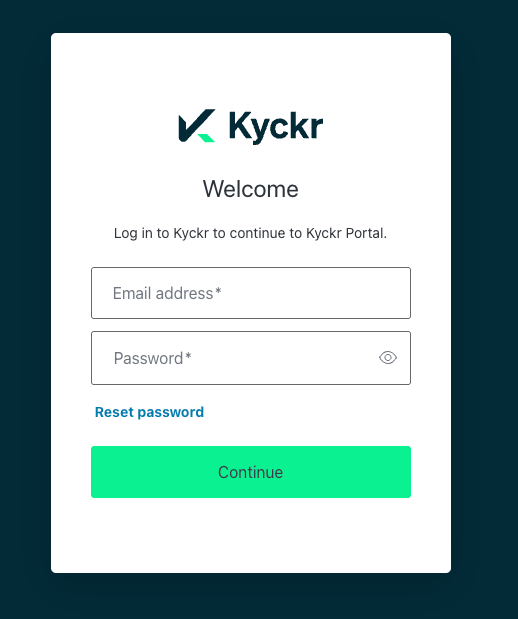 Enter your email address and password.
Click **Continue**.
This brings you to the homepage, from here you can:
* Start a new company search using the search bar
* Return to a company you've already searched, from your list of past searches
* Access the **Admin** tab, if you're an administrator
* Access **Order History** and the **Help Desk** — available to all users
You can return to the homepage at any time by clicking the Kyckr icon in the top-left corner.
## Search for a company
Enter your email address and password.
Click **Continue**.
This brings you to the homepage, from here you can:
* Start a new company search using the search bar
* Return to a company you've already searched, from your list of past searches
* Access the **Admin** tab, if you're an administrator
* Access **Order History** and the **Help Desk** — available to all users
You can return to the homepage at any time by clicking the Kyckr icon in the top-left corner.
## Search for a company
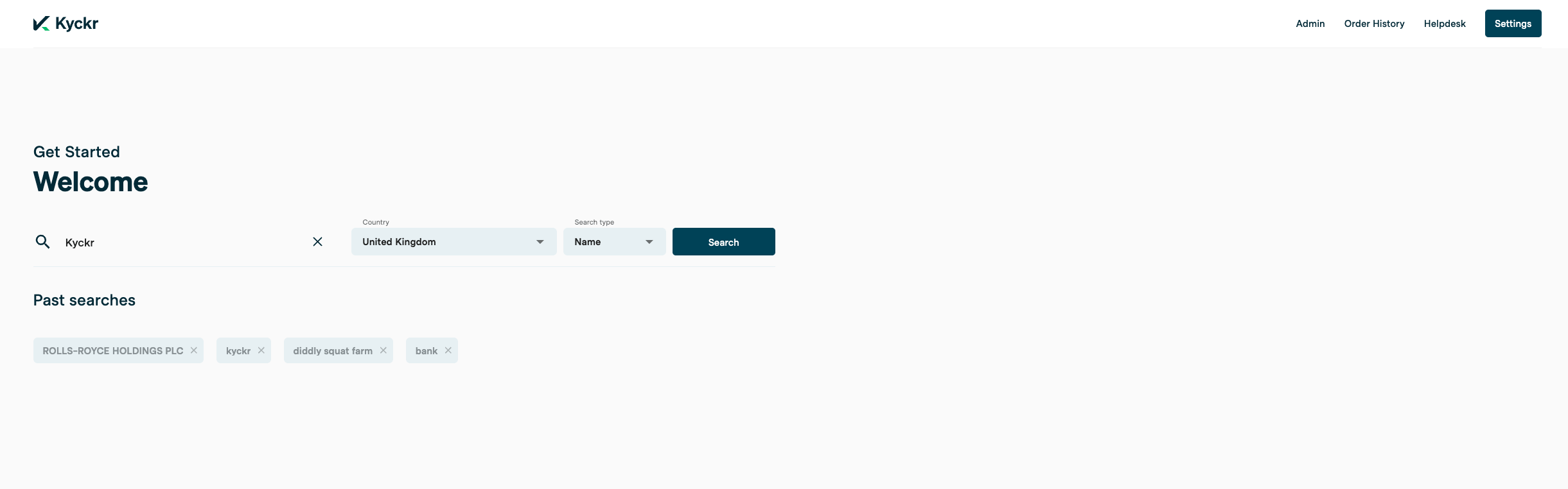 In the search bar, enter either a company name or number.
If you don't know which jurisdiction the company is based in, use global search instead.
Click **Search**.
Kyckr retrieves a live list of matching companies from the registry.
In the search bar, enter either a company name or number.
If you don't know which jurisdiction the company is based in, use global search instead.
Click **Search**.
Kyckr retrieves a live list of matching companies from the registry.
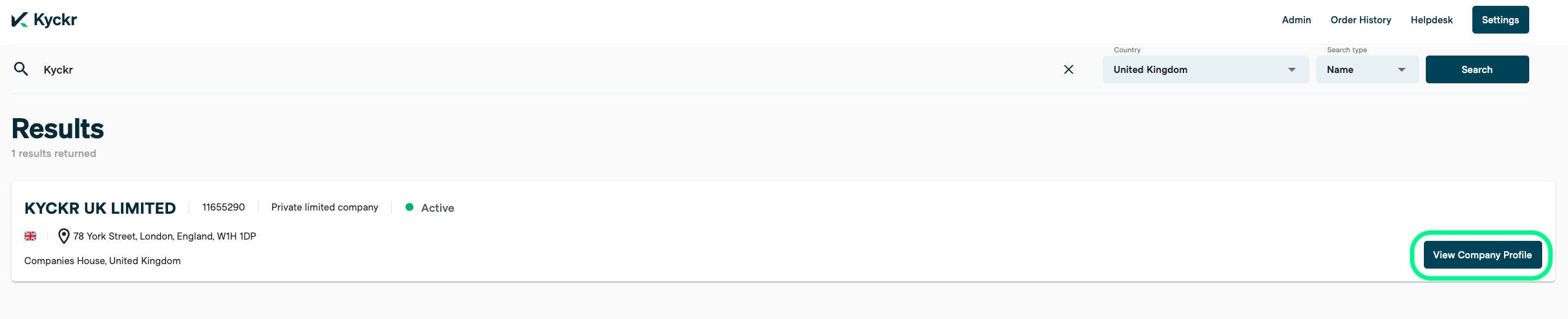 Click **View Company Profile** on the correct match.
This opens the company profile, showing basic company details and a list of filings available at the registry.
## Retrieve directors and shareholders
The company profile shows a green **View on screen** box, with the cost of an enhanced profile in credits.
Enhanced profiles are only available in jurisdictions where Kyckr offers one.
Click **View on screen** to order the enhanced profile.
A confirmation box shows the credit cost. Add a customer reference if you need one, then click **Yes, continue**. You can also opt not to see this confirmation box again.
Kyckr retrieves the most up-to-date director and shareholder information from the registry. Two new tabs appear on the company profile: **Company Officials**, showing director information, and **Shareholding**, showing shareholder information, if available from the registry.
Once retrieved, you can download the enhanced profile as a PDF.
## Ownership discovery
Before ordering an ownership discovery report, you can configure:
* **Maximum credit cost** — the maximum number of credits you're willing to spend on the report
* **Maximum layers** — the maximum number of ownership layers to pull back in the report
* **UBO threshold** — the ownership percentage that qualifies someone as a UBO. Choose from 5%, 10%, 15%, 20%, or 25% Click **Unwrap** to order the report.
Once your report is ready, you can download it as a PDF.
## Registry documents
Under the **Filings** tab you can see a list of all available fillings at the registry, each document will show (where available at the registry):
| Field | Description |
| ---------------------- | --------------------------------------------------------------------------------------------------------------------- |
| Title | The name of the document as it appears at the registry |
| Address | The registered address on the filing |
| Date | The date the filing was added to the registry |
| Expected delivery time | Shown next to a sand-timer icon. This isn't an SLA, it's the expected time to retrieve the document from the registry |
| Cost | Shown in a blue **Order** box, in Kyckr credits |
Click **Order** in the blue box next to the document.
Add a customer reference if you need one.
Click **Yes, continue**.
Click **View Company Profile** on the correct match.
This opens the company profile, showing basic company details and a list of filings available at the registry.
## Retrieve directors and shareholders
The company profile shows a green **View on screen** box, with the cost of an enhanced profile in credits.
Enhanced profiles are only available in jurisdictions where Kyckr offers one.
Click **View on screen** to order the enhanced profile.
A confirmation box shows the credit cost. Add a customer reference if you need one, then click **Yes, continue**. You can also opt not to see this confirmation box again.
Kyckr retrieves the most up-to-date director and shareholder information from the registry. Two new tabs appear on the company profile: **Company Officials**, showing director information, and **Shareholding**, showing shareholder information, if available from the registry.
Once retrieved, you can download the enhanced profile as a PDF.
## Ownership discovery
Before ordering an ownership discovery report, you can configure:
* **Maximum credit cost** — the maximum number of credits you're willing to spend on the report
* **Maximum layers** — the maximum number of ownership layers to pull back in the report
* **UBO threshold** — the ownership percentage that qualifies someone as a UBO. Choose from 5%, 10%, 15%, 20%, or 25% Click **Unwrap** to order the report.
Once your report is ready, you can download it as a PDF.
## Registry documents
Under the **Filings** tab you can see a list of all available fillings at the registry, each document will show (where available at the registry):
| Field | Description |
| ---------------------- | --------------------------------------------------------------------------------------------------------------------- |
| Title | The name of the document as it appears at the registry |
| Address | The registered address on the filing |
| Date | The date the filing was added to the registry |
| Expected delivery time | Shown next to a sand-timer icon. This isn't an SLA, it's the expected time to retrieve the document from the registry |
| Cost | Shown in a blue **Order** box, in Kyckr credits |
Click **Order** in the blue box next to the document.
Add a customer reference if you need one.
Click **Yes, continue**.
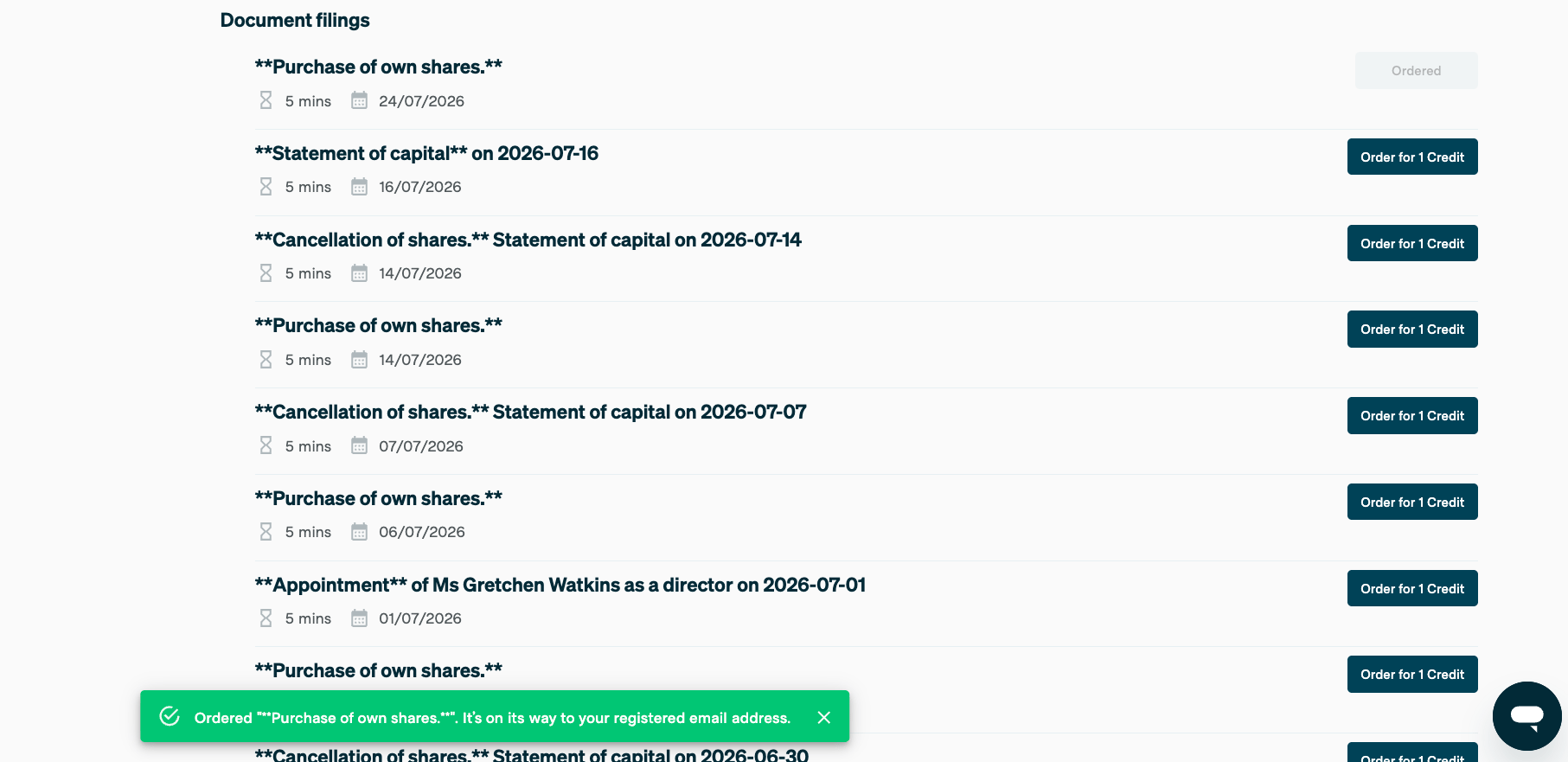 A confirmation banner appears once the order is placed, and the **Order** option greys out to show the document has already been requested.
You'll receive an email once the document is available. You can then view it from [Order history](#order-history).
## Order history
Under **Order History**, view every profile and document you've ordered. You can view or download each one as a PDF.
A confirmation banner appears once the order is placed, and the **Order** option greys out to show the document has already been requested.
You'll receive an email once the document is available. You can then view it from [Order history](#order-history).
## Order history
Under **Order History**, view every profile and document you've ordered. You can view or download each one as a PDF.
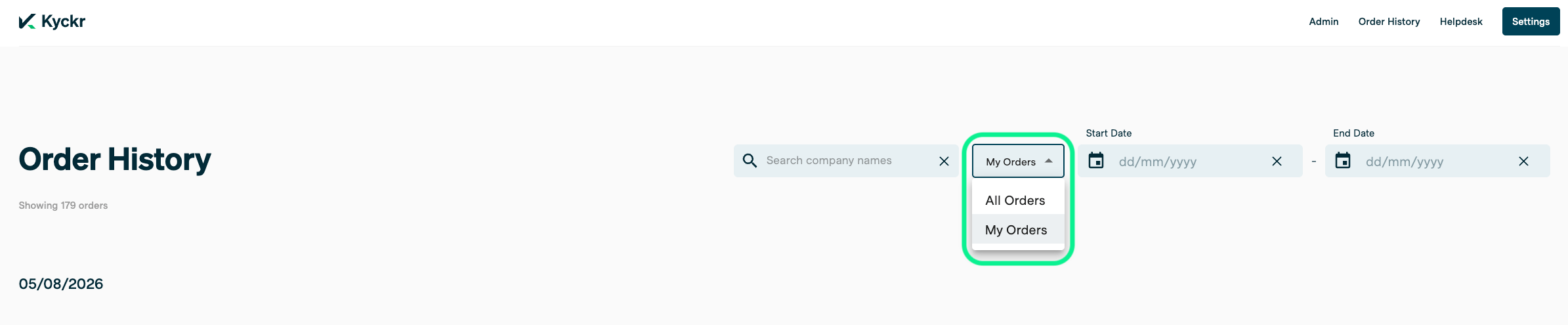 Administrators can toggle between their own orders and all orders placed across their team.
## Requesting a password reset
Go to [portal.kyckr.com](https://portal.kyckr.com/).
Click **Reset password**, below the password field.
## Status page
If a company search or registry data request fails, you'll see a message telling you the registry is unavailable.
Visit [status.kyckr.com](https://status.kyckr.com/) to see registry downtime and scheduled maintenance.
## Coverage portal
To see which jurisdictions Kyckr covers, and the profiles and documents available for each, visit [coverage.kyckr.com](https://coverage.kyckr.com/).
Administrators can toggle between their own orders and all orders placed across their team.
## Requesting a password reset
Go to [portal.kyckr.com](https://portal.kyckr.com/).
Click **Reset password**, below the password field.
## Status page
If a company search or registry data request fails, you'll see a message telling you the registry is unavailable.
Visit [status.kyckr.com](https://status.kyckr.com/) to see registry downtime and scheduled maintenance.
## Coverage portal
To see which jurisdictions Kyckr covers, and the profiles and documents available for each, visit [coverage.kyckr.com](https://coverage.kyckr.com/).