


Creating a user
Any administrator can add users to your organisation’s account. New users receive a welcome email with a password reset link, giving them immediate access to the Portal.1
Open user management
Click Admin in the top navigation bar.
2
Start the add user flow
Click + Add User, in the top right of the user management table.
3
Enter the user's details
Provide: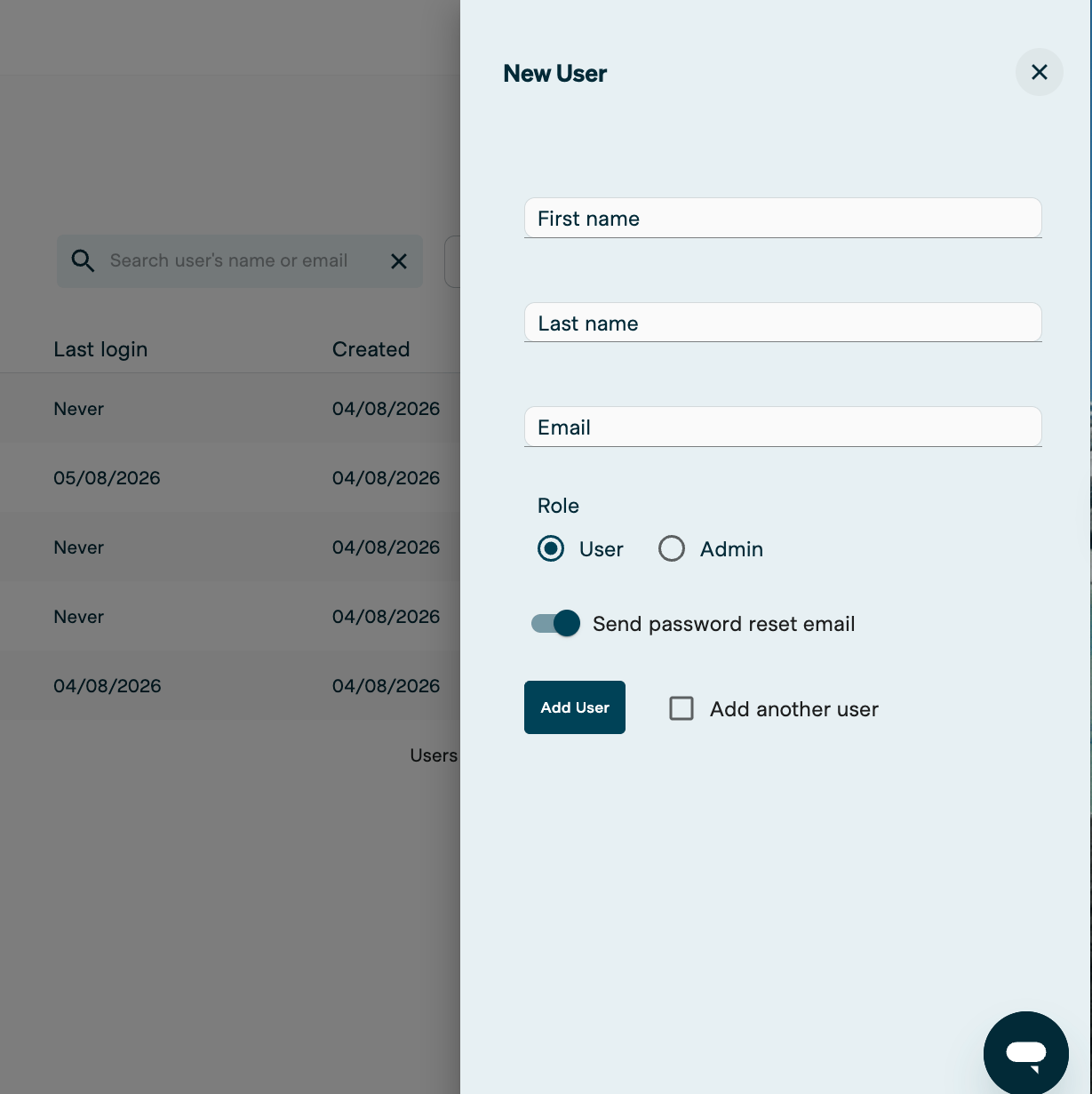
- First name
- Surname
- Email address
- Role: User or Admin
4
Add more than one user (optional)
Tick Add another user to keep the form open and add several users in one session.
5
Confirm
Click Add User.
The new user receives a welcome email with a password reset link. They need this to log in for the first time.
Editing a user
1
Open user management
Click Admin in the top navigation bar.
2
Find the user
Search by name or email, then click the three dots (⋮) next to the user, and select Edit User.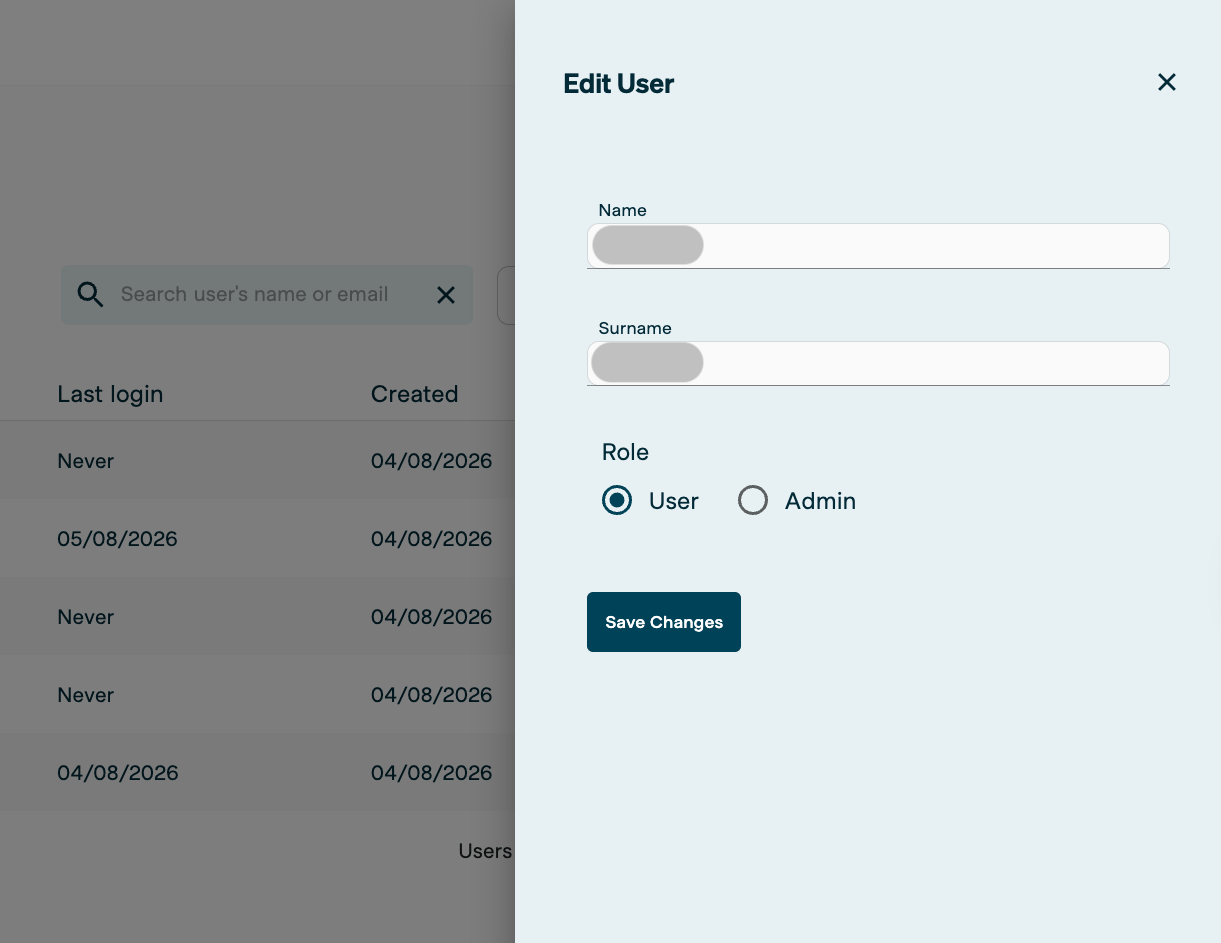
3
Update the user's details
Edit any of the following:
- First name
- Surname
- Role: User or Admin
4
Save changes
Click Save Changes.
Resetting a user’s password
If a user is having login issues, or isn’t receiving their password reset email, an administrator can trigger a reset from the admin area.1
Open user management
Click Admin in the top navigation bar.
2
Find the user
Search by name or email.
3
Send the reset
Click the three dots (⋮) next to the user, then select Password Reset.
The user receives an email to reset their password. If it doesn’t arrive, ask them to check their junk folder first. If it still doesn’t appear, contact support@kyckr.com.
Deleting a user
1
Open user management
Click Admin in the top navigation bar.
2
Find the user
Search by name or email, then click the three dots (⋮) next to the user you want to remove.
3
Delete the user
Select Delete User.
4
Save changes
Click Save Changes to confirm.
Deleted users aren’t removed permanently. See Reactivating a deleted user below.
Reactivating a deleted user
1
Open user management
Click Admin in the top navigation bar.
2
Switch to inactive users
Click the Active drop-down and select Inactive.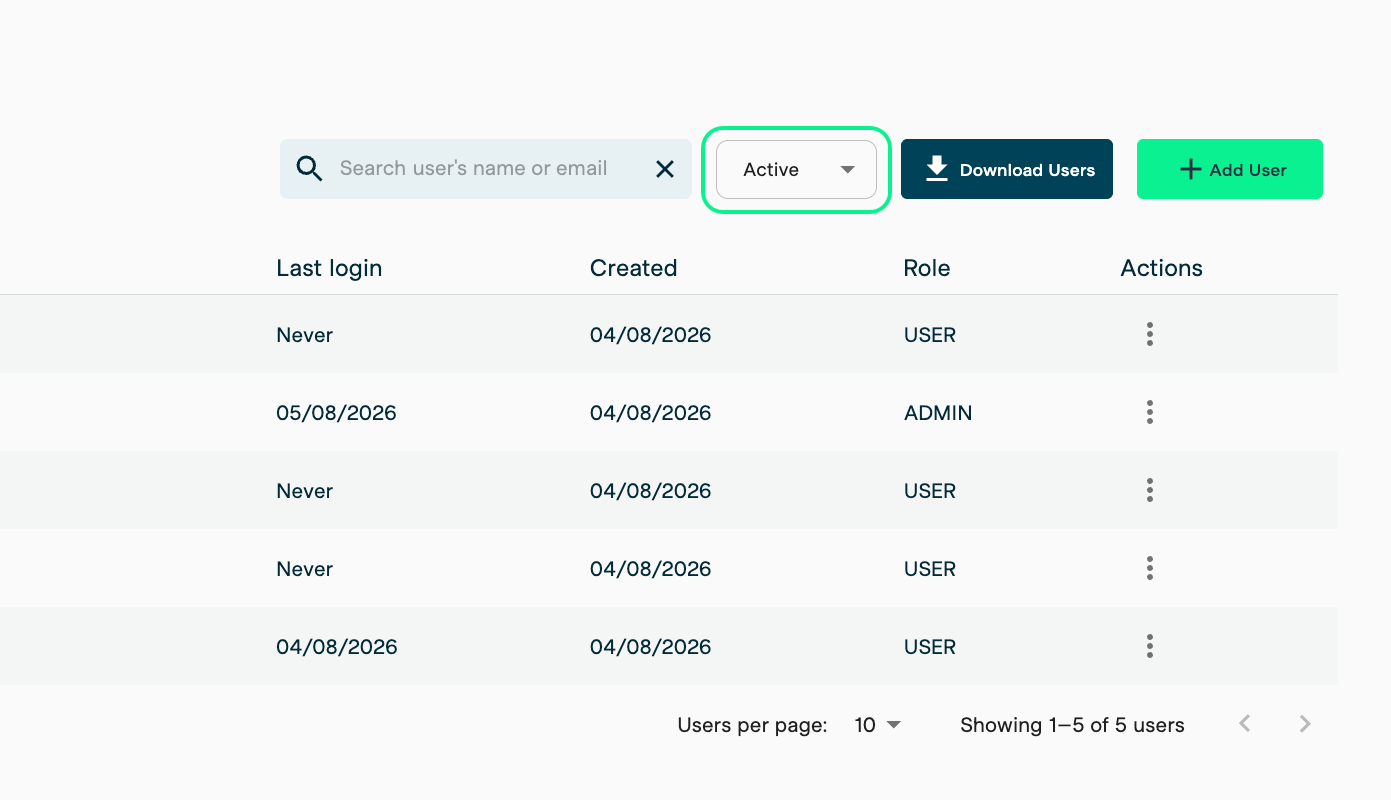
3
Reactivate the user
Find the user, click the three dots (⋮), then select Activate User. Confirm the activation.
4
Switch back to active users
Click the Inactive drop-down and select Active to confirm the user now appears in the active list.
Reactivated users receive a new welcome email, but not a password reset email. Ask the user to reset their password at portal.kyckr.com, or trigger a reset yourself — see Resetting a user’s password above.